Recently the ASKCORE Team wrote an excellent article about the most common problems that they receive from their clients regarding to Hyper-V R2 Live Migration.
According to them, the most common problems are related with some bad habits and bad decisions regarding to network configurations. The article also explain some techniques to increase the speed of the process (they’ve called it – Bonus Material :)).
Read more at “The devil may be in the networking details.”
Showing posts with label Hyper-V. Show all posts
Showing posts with label Hyper-V. Show all posts
Thursday, December 10, 2009

Offline Virtual Machine Servicing Tool V2.1
Microsoft released their new Offline Virtual Machine Servicing Tool; the new version of this tool includes support for Windows Server 2008 R2 and VMM 2008 R2.
What this tool can do for you?
Basically allows you to perform updates in your offline VM's that are in your VMM library. A scheduled job runs, deploys the VM, updates it and stores it back in the library during this process.
Offline Virtual Machine Servicing Tool 2.1 now supports the following products:

What this tool can do for you?
Basically allows you to perform updates in your offline VM's that are in your VMM library. A scheduled job runs, deploys the VM, updates it and stores it back in the library during this process.
Offline Virtual Machine Servicing Tool 2.1 now supports the following products:
- Hyper-V-R2
- VMM 2008 R2
- SCCM 2007 SP2
- WSUS 3.0 SP2
- Updates to Windows 7 and Windows Server 2008 R2 virtual machines.

Download it Here
Wednesday, December 2, 2009
Disk2vhd v1.4 available for download
New update for Disk2vhd, now we can use the 1.4 version of the product.
Back In October SysInternals gave us the Disk2vhd v1.1 the announcement was made here at ENIACK, the v1.3 was released in November, now SysInternals is back with the new version of the same tool “v1.4”.
To download, click HERE
Read more about the new version at Sysinternals
Back In October SysInternals gave us the Disk2vhd v1.1 the announcement was made here at ENIACK, the v1.3 was released in November, now SysInternals is back with the new version of the same tool “v1.4”.
To download, click HERE
Read more about the new version at Sysinternals
Core Configurator 2.0 available for download
Core Configurator 2.0 is now available for download at CODEPLEX.
It is completely open source so it can be ammended and change to fit your requirements, this version has been a year in the making and has been written in powershell with a reference to Winforms so that a GUI format is displayed.
The primary focus of this project is to try and get feedback and contributions back from the community to make this a tool the best/ free tool everyone will want in there toolkit, so if you have some code or features that you might want included then please leave a comment and we will get in touch.
Core Configuration tasks include:
-Product Licencing
-Networking Features
-DCPromo Tool
-ISCSI Settings
-Server Roles and Features
-User and Group Permissions
-Share Creation and Deletion
-Dynamic Firewall settings
-Display
-Screensaver Settings
-Add & Remove Drivers
-Proxy settings
-Windows Updates (Including WSUS)
-Multipath I/O
-Hyper-V including virtual machine thumbnails
-JoinDomain and Computer rename
-Add/remove programs
-Services
-WinRM
-Complete logging of all commands executed
It is completely open source so it can be ammended and change to fit your requirements, this version has been a year in the making and has been written in powershell with a reference to Winforms so that a GUI format is displayed.
The primary focus of this project is to try and get feedback and contributions back from the community to make this a tool the best/ free tool everyone will want in there toolkit, so if you have some code or features that you might want included then please leave a comment and we will get in touch.
Core Configuration tasks include:
-Product Licencing
-Networking Features
-DCPromo Tool
-ISCSI Settings
-Server Roles and Features
-User and Group Permissions
-Share Creation and Deletion
-Dynamic Firewall settings
-Display
-Screensaver Settings
-Add & Remove Drivers
-Proxy settings
-Windows Updates (Including WSUS)
-Multipath I/O
-Hyper-V including virtual machine thumbnails
-JoinDomain and Computer rename
-Add/remove programs
-Services
-WinRM
-Complete logging of all commands executed
Thursday, November 19, 2009
Hyper-V: How to Shrink and change the partition Size for a vhd file
Recently Tonyso posted an interesting article about how to shrink and change a partition size for a vhd file.
There’re a lot of reasons why should be interested in doing something like this, for instance, you may need to reduce the size of a vhd file that was created during a P2V migration, or you may need to reduce the maximum size of a given partition for an old miss configured vhd file with extra unused space, or perhaps you need to consolidate your available storage and for that you need to readjust the existing vhd files to the correct size…
Check it out how to do it with ISO Linux distro that includes NTFSRESIZE and FDISK
PS:
In the future posts, I’ll show you different ways to do the same thing with different tools.
There’re a lot of reasons why should be interested in doing something like this, for instance, you may need to reduce the size of a vhd file that was created during a P2V migration, or you may need to reduce the maximum size of a given partition for an old miss configured vhd file with extra unused space, or perhaps you need to consolidate your available storage and for that you need to readjust the existing vhd files to the correct size…
Check it out how to do it with ISO Linux distro that includes NTFSRESIZE and FDISK
PS:
In the future posts, I’ll show you different ways to do the same thing with different tools.
Hyper-V Cluster Error: An error occurred while creating the cluster. An error occurred creating cluster 'clustername'. The service has not been started.
Here’s an interesting one that I already run a couple of times. You try to create a cluster at Hyper-V, the cluster pass all validation tests, then, at the final phase of the cluster creation, the process fails with the following error:
An error occurred while creating the cluster. An error occurred creating cluster 'clustername'. The service has not been started.
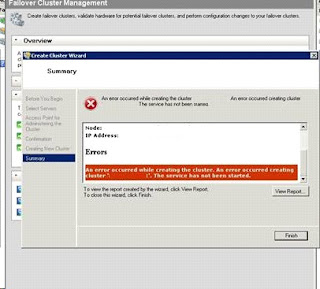
After this, the cluster computer account is removed from Active Directory!!!
After a closest check, I notice that the problem is related with the “Microsoft Failover Cluster Virtual Adapter” - “This device cannot start. (Code 10)”.

Hum…
After a reboot I saw the following errors at the event log:
EventID 4872:
The failover cluster virtual adapter failed to generate a unique MAC address. Either it was unable to find a physical Ethernet adapter from which to generate a unique address or the generated address conflicts with another adapter on this machine. Please run the Validate a Configuration wizard to check your network configuration.
and
EventID 4871:
The cluster service failed to start. This was because the failover cluster virtual adapter failed to initialize the miniport adapter. The error code was '2147483674'. Verify that other network adapters are functioning properly and check the device manager for errors. If the configuration was changed, it may be necessary to reinstall the failover clustering feature on this computer.
Okay, something is wrong with the MAC Address creation for the Microsoft Failover Cluster Virtual Adapter. What can we do about that?
Solution:
(Before proceeding, make sure that you backup of your registry)
- Open registry, and navigate to the following registry subkey:
HKEY_LOCAL_MACHINE\SYSTEM\ControlSet001\Control\Class\{4D36E972-E325-11CE-BFC1-08002BE10318}
- Under this subkey, find the subkey that holds a DriverDesc string value entry whose value is "Microsoft Failover Cluster Virtual Adapter." (NOTE: 007 was the key designated were the Microsoft Failover Cluster Virtual Adapter was in my server, but this number may vary on different servers.)

- Under the subkey (in my scenario "007"), add the following string value registry entry:
Name: DatalinkAddress
Value data: 02-AA-BB-CC-DD-01
String Value (REG_SZ)
Restart the computer.
DONE!!!
Repeat these steps for computers were you're having this problem. When you do this on other computers, replace the value data of the registry with different values in order to set a unique value for each node. For example, set the value on the second node to 02-AA-BB-CC-DD-02, and set value on the third node to 02-AA-BB-CC-DD-03. If you notice this behavior on distinct clusters, make sure that you use an address for each node that is unique across all clusters.
Recently, Microsoft has released the KB973838 that describes the same issue.
Have Fun!!!
An error occurred while creating the cluster. An error occurred creating cluster 'clustername'. The service has not been started.

After this, the cluster computer account is removed from Active Directory!!!
After a closest check, I notice that the problem is related with the “Microsoft Failover Cluster Virtual Adapter” - “This device cannot start. (Code 10)”.

After a reboot I saw the following errors at the event log:
EventID 4872:
The failover cluster virtual adapter failed to generate a unique MAC address. Either it was unable to find a physical Ethernet adapter from which to generate a unique address or the generated address conflicts with another adapter on this machine. Please run the Validate a Configuration wizard to check your network configuration.
and
EventID 4871:
The cluster service failed to start. This was because the failover cluster virtual adapter failed to initialize the miniport adapter. The error code was '2147483674'. Verify that other network adapters are functioning properly and check the device manager for errors. If the configuration was changed, it may be necessary to reinstall the failover clustering feature on this computer.
Okay, something is wrong with the MAC Address creation for the Microsoft Failover Cluster Virtual Adapter. What can we do about that?
Solution:
(Before proceeding, make sure that you backup of your registry)
- Open registry, and navigate to the following registry subkey:
HKEY_LOCAL_MACHINE\SYSTEM\ControlSet001\Control\Class\{4D36E972-E325-11CE-BFC1-08002BE10318}
- Under this subkey, find the subkey that holds a DriverDesc string value entry whose value is "Microsoft Failover Cluster Virtual Adapter." (NOTE: 007 was the key designated were the Microsoft Failover Cluster Virtual Adapter was in my server, but this number may vary on different servers.)

- Under the subkey (in my scenario "007"), add the following string value registry entry:
Name: DatalinkAddress
Value data: 02-AA-BB-CC-DD-01
String Value (REG_SZ)
Restart the computer.
DONE!!!
Repeat these steps for computers were you're having this problem. When you do this on other computers, replace the value data of the registry with different values in order to set a unique value for each node. For example, set the value on the second node to 02-AA-BB-CC-DD-02, and set value on the third node to 02-AA-BB-CC-DD-03. If you notice this behavior on distinct clusters, make sure that you use an address for each node that is unique across all clusters.
Recently, Microsoft has released the KB973838 that describes the same issue.
Have Fun!!!
Monday, November 9, 2009
Wednesday, November 4, 2009
MS release of Virtual Machine Migration Test Wizard
In Windows Server 2008 R2 Hyper-V R2, when a running or a saved state virtual machine is migrated to another server, the destination server may have a processor with a different set of features. An operating system or application that attempts to execute CPU features discovered when the virtual machine was started on a "source" machine, but not present on the destination (called "destination") machine, will cause a virtual machine migration failure.
The Hyper-V R2 virtualization platform prevents the migration of a virtual machine that will fail in this way because the processors of the "source" and "destination" servers are not compatible. However, this check for compatibility only happens at the time of virtual machine migration, not when the server joins a cluster.
Windows Server 2008 R2 includes a capability called “Processor compatibility mode” so that you can avoid the situation where virtual machines cannot be migrated due to processor incompatibilities. However, if you do not want to turn this capability on for each of your virtual machines, you can use this wizard to identify which machines in your environment are compatible.
READ AND DOWNLOAD IT HERE!!!
The Hyper-V R2 virtualization platform prevents the migration of a virtual machine that will fail in this way because the processors of the "source" and "destination" servers are not compatible. However, this check for compatibility only happens at the time of virtual machine migration, not when the server joins a cluster.
Windows Server 2008 R2 includes a capability called “Processor compatibility mode” so that you can avoid the situation where virtual machines cannot be migrated due to processor incompatibilities. However, if you do not want to turn this capability on for each of your virtual machines, you can use this wizard to identify which machines in your environment are compatible.
READ AND DOWNLOAD IT HERE!!!
Sysinternals Updated Disk2vhd Disk2vhd v1.1 to Disk2vhd v1.3
Back In October SysInternals gave us the Disk2vhd v1.1 (and I already used some times with excellent results) the announcement was made here at ENIACK, now SysInternals is back with the new version of the same tool “v1.3”.
The difference between Disk2vhd and other physical-to-virtual tools is that you can run Disk2vhd on a system that’s online. Disk2vhd uses Windows’ Volume Snapshot capability, introduced in Windows XP, to create consistent point-in-time snapshots of the volumes you want to include in a conversion. You can even have Disk2vhd create the VHDs on local volumes, even ones being converted (though performance is better when the VHD is on a disk different than ones being converted).
DOWNLOAD IT NOW HERE!!!
The difference between Disk2vhd and other physical-to-virtual tools is that you can run Disk2vhd on a system that’s online. Disk2vhd uses Windows’ Volume Snapshot capability, introduced in Windows XP, to create consistent point-in-time snapshots of the volumes you want to include in a conversion. You can even have Disk2vhd create the VHDs on local volumes, even ones being converted (though performance is better when the VHD is on a disk different than ones being converted).
DOWNLOAD IT NOW HERE!!!
Friday, October 16, 2009
Remote Desktop Load Simulation Tools
After several customer requests, Microsoft has released the Remote Desktop Load Simulation tools to help you size your VDI deployments. Use Connect and give genuine feedback to the responsible teams.
The Remote Desktop Load Simulation toolset is used for server capacity planning and performance/scalability analysis.
In a server-based computing environment, all application execution and data processing occur on the server. Therefore it is extremely interesting to test the scalability and capacity of servers to determine how many client sessions a server can typically support under a variety of different scenarios. One of the most reliable ways to find out the number or users a server can support for a particular scenario is to log on a large number of users on the server simultaneously. The Remote Desktop Load Simulation tools provide the functionality which makes it possible to generate the required user load on the server.
Enjoy!!!
The Remote Desktop Load Simulation toolset is used for server capacity planning and performance/scalability analysis.
In a server-based computing environment, all application execution and data processing occur on the server. Therefore it is extremely interesting to test the scalability and capacity of servers to determine how many client sessions a server can typically support under a variety of different scenarios. One of the most reliable ways to find out the number or users a server can support for a particular scenario is to log on a large number of users on the server simultaneously. The Remote Desktop Load Simulation tools provide the functionality which makes it possible to generate the required user load on the server.
Enjoy!!!
Boot From VHD and run Hyper-V in your Windows 7 box
Keith Combs wrote an excellent article about the How to boot from vhd in windows 7 and run Windows 2008 R2 with Hyper-v.
Keith wrote:
If you are running Windows 7 today, there’s no reason to tear down your machine, re-partition your drive, and reinstall your world. Instead, you can simply install Windows Server 2008 R2 into a .VHD file and make it bootable. After that is accomplished you can choose the OS you want when you power up your machine. The following steps are the simplest way (currently) to do this. It really doesn’t get any simpler.
Read more here.
Keith wrote:
If you are running Windows 7 today, there’s no reason to tear down your machine, re-partition your drive, and reinstall your world. Instead, you can simply install Windows Server 2008 R2 into a .VHD file and make it bootable. After that is accomplished you can choose the OS you want when you power up your machine. The following steps are the simplest way (currently) to do this. It really doesn’t get any simpler.
Read more here.
Wednesday, October 7, 2009
Sysinternals new Tool Disk2vhd v1.0
Disk2vhd is a utility that creates VHD (Virtual Hard Disk - Microsoft’s Virtual Machine disk format) versions of physical disks for use in Microsoft Virtual PC or Microsoft Hyper-V virtual machines (VMs). The difference between Disk2vhd and other physical-to-virtual tools is that you can run Disk2vhd on a system that’s online. Disk2vhd uses Windows’ Volume Snapshot capability, introduced in Windows XP, to create consistent point-in-time snapshots of the volumes you want to include in a conversion. You can even have Disk2vhd create the VHDs on local volumes, even ones being converted (though performance is better when the VHD is on a disk different than ones being converted).
Disk2vhd runs Windows XP SP2, Windows Server 2003 SP1, and higher, including x64 systems.
Check more here
Well done Mark :)
Disk2vhd runs Windows XP SP2, Windows Server 2003 SP1, and higher, including x64 systems.
Check more here
Well done Mark :)
RedHat Support for Hyper-V
Microsoft announced that they have completed a mutual support program with RedHat.
Now we have support for both enterprise Linux platforms on Hyper-V; SUSE being the other one. And both can be monitored from hardware to service using Operations Manager 2007 R2.
Details:
- Red Hat Enterprise Linux 5.2, 5.3, 5.4 have passed cert tests when running on Windows Server 2008 Hyper-V, Microsoft Hyper-V Server 2008, Windows Server 2008 R2 Hyper-V, Microsoft Hyper-V Server 2008 R2. See more at RedHat's certified hardware site.
- Windows Server 2003/ Windows Server 2008 / Windows Server 2008 R2 are validated to run on Red Hat Enterprise Linux 5.4, using their KVM-based hypervisor. See more at Microsoft Server Virtualization Validation Program site.
Now we have support for both enterprise Linux platforms on Hyper-V; SUSE being the other one. And both can be monitored from hardware to service using Operations Manager 2007 R2.
Details:
- Red Hat Enterprise Linux 5.2, 5.3, 5.4 have passed cert tests when running on Windows Server 2008 Hyper-V, Microsoft Hyper-V Server 2008, Windows Server 2008 R2 Hyper-V, Microsoft Hyper-V Server 2008 R2. See more at RedHat's certified hardware site.
- Windows Server 2003/ Windows Server 2008 / Windows Server 2008 R2 are validated to run on Red Hat Enterprise Linux 5.4, using their KVM-based hypervisor. See more at Microsoft Server Virtualization Validation Program site.
Monday, September 28, 2009
SCVMM 2008 R2 KB 971677
KB 971677 discusses an issue when a Hyper-V differencing disk that you create in Windows Server 2008 R2 cannot be used in Windows Server 2008.
Note: you need to click in "request hotfix" on top of KB page to request the hotfix for this specific error.
A server error occurred while you try to import the virtual machine. Failed to import the virtual machine from import directory ''. Failed to add device 'Microsoft Virtual Hard Disk'. Cannot open attachment '\Filename.vhd'. Error: 'The file or directory is corrupted and unreadable.'Cannot get information for attachment '\Filename.vhd'.
Note: you need to click in "request hotfix" on top of KB page to request the hotfix for this specific error.
A server error occurred while you try to import the virtual machine. Failed to import the virtual machine from import directory '
SCVMM 2008 R2 KB 974869
KB974869 discusses some issues that might occur if the SCVMM 2008 agents from the original version of Virtual Machine Manager 2008 remain after you upgrade to SCVMM 2008 R2.
Solution:
Manually upgrade all remaining agents to Virtual Machine Manager 2008 R2.
Warning (2927)A Hardware Management error has occurred trying to contact server. (Unknown error (0x80338041))
Error 0x80338041: The SOAP XML in the message does not match the corresponding XML schema definition. Change the XML and retry.
Error (2927)A Hardware Management error has occurred trying to contact server. (Unknown error (0x80338001))
Error 0x80338001: The WS-Management service cannot process the request. The WS-Addressing action URI is invalid. Check the documentation for information on how to construct an action URI.
Read more at:
KB974869 - You receive a warning 2927 and an unknown error when you create a virtual machine from a VHD file after you upgrade to System Center Virtual Machine Manager 2008 R2
Solution:
Manually upgrade all remaining agents to Virtual Machine Manager 2008 R2.
Warning (2927)A Hardware Management error has occurred trying to contact server
Error 0x80338041: The SOAP XML in the message does not match the corresponding XML schema definition. Change the XML and retry.
Error (2927)A Hardware Management error has occurred trying to contact server
Error 0x80338001: The WS-Management service cannot process the request. The WS-Addressing action URI is invalid. Check the documentation for information on how to construct an action URI.
Read more at:
KB974869 - You receive a warning 2927 and an unknown error when you create a virtual machine from a VHD file after you upgrade to System Center Virtual Machine Manager 2008 R2
SCVMM 2008 R2 KB 975426
KB975426 - Virtual machines cannot migrate from a Windows Server 2008 stand-alone server to a Windows Server 2008 cluster after you upgrade to System Center Virtual Machine Manager 2008 R2
This new KB discusses an issue where SAN migration may fail with error 1600 after upgrading to to System Center Virtual Machine Manager 2008 R2.
Error (1600)
VMM is unable to process one or more of the provided cmdlet parameters.
Recommended Action
Type Get-Help NO_PARAM -full to view a list of defined parameters and complete descriptions. Then try the operation again.
This new KB discusses an issue where SAN migration may fail with error 1600 after upgrading to to System Center Virtual Machine Manager 2008 R2.
Error (1600)
VMM is unable to process one or more of the provided cmdlet parameters.
Recommended Action
Type Get-Help NO_PARAM -full to view a list of defined parameters and complete descriptions. Then try the operation again.
Monday, August 24, 2009
Useful Virtualization Documentation for MS R2 Products
Useful Virtualization Documentation for MS R2 Products
In this post I have some important documents for Hyper-V, Hyper-V R2 and Windows Clustering, in this one I’ll post some of the new important /and/or/ updated documents for R2 virtualization products:
SCVMM2008 R2
Virtual Machine Manager Deployment Guide
VMM 2008 R2 Upgrade Guide
Virtual Machine Manager Security Guide
System Center Virtual Machine Manager (VMM) 2008 R2 Documentation
TechNet Library on VMM2008 R2
What's New in Virtual Machine Manager 2008 R2
Webcast: Technical Overview of System Center Virtual Machine Manager 2008 R2
VMM2008 R2 - Building PRO-Enabled Management Packs
System Center Virtual Machine Manager 2008 R2 Cmdlet Reference
System Center Virtual Machine Manager 2008 R2 Release Notes
Virtual Machine Manager Guide to Operations Manager Integration
Virtual Machine Manager Operations Guide
Virtual Machine Manager Scripting Guide
System Center Virtual Machine Manager 2008 and 2008 R2 MPSRPT Tool
System Center Virtual Machine Manager 2008 and 2008 R2 Configuration Analyzer
Hyper-V R2
Hyper-V Technical Information and Resources
Hyper-V
Hyper-V Planning and Deployment Guide
Hyper-V R2 Upgrades
Requirements and Limits for Virtual Machines and Hyper-V in Windows Server 2008 R2
Linux Integration Components for Windows Server 2008 Hyper-V R2
A Walkthrough from Initial Setup to Common Scenarios
Hyper-V Update List
How to upgrade Windows Server 2008 systems that have the Hyper-V role installed to Windows Server 2008 R2
Clustering
Using Live Migration in Windows Server 2008 R2
What’s new in R2 Clustering
Hyper-V Live Migration Overview & Architecture
Storage
Migration to Windows Server 2008 R2 Failover Clusters
Virtual Desktops (VDI)
Deploying Personal Virtual Desktops by Using RemoteApp and Desktop Connection Step-by-Step Guide
Deploying Virtual Desktop Pools by Using RemoteApp and Desktop Connection Step-by-Step Guide
Virtualization Resources
Resources (White papers, Tools, Research, etc...)
IPD Guides for Virtualization
Performance
Monitoring Hyper-V Performance
How to monitor virtual machine disk performance on a Windows Server 2008-based computer that has the Hyper-V role installed
Updated!
Infrastructure Planning and Design (IPD) Guide for Selecting the Right Virtualization Technology
Enjoy!!!
In this post I have some important documents for Hyper-V, Hyper-V R2 and Windows Clustering, in this one I’ll post some of the new important /and/or/ updated documents for R2 virtualization products:
SCVMM2008 R2
Virtual Machine Manager Deployment Guide
VMM 2008 R2 Upgrade Guide
Virtual Machine Manager Security Guide
System Center Virtual Machine Manager (VMM) 2008 R2 Documentation
TechNet Library on VMM2008 R2
What's New in Virtual Machine Manager 2008 R2
Webcast: Technical Overview of System Center Virtual Machine Manager 2008 R2
VMM2008 R2 - Building PRO-Enabled Management Packs
System Center Virtual Machine Manager 2008 R2 Cmdlet Reference
System Center Virtual Machine Manager 2008 R2 Release Notes
Virtual Machine Manager Guide to Operations Manager Integration
Virtual Machine Manager Operations Guide
Virtual Machine Manager Scripting Guide
System Center Virtual Machine Manager 2008 and 2008 R2 MPSRPT Tool
System Center Virtual Machine Manager 2008 and 2008 R2 Configuration Analyzer
Hyper-V R2
Hyper-V Technical Information and Resources
Hyper-V
Hyper-V Planning and Deployment Guide
Hyper-V R2 Upgrades
Requirements and Limits for Virtual Machines and Hyper-V in Windows Server 2008 R2
Linux Integration Components for Windows Server 2008 Hyper-V R2
A Walkthrough from Initial Setup to Common Scenarios
Hyper-V Update List
How to upgrade Windows Server 2008 systems that have the Hyper-V role installed to Windows Server 2008 R2
Clustering
Using Live Migration in Windows Server 2008 R2
What’s new in R2 Clustering
Hyper-V Live Migration Overview & Architecture
Storage
Migration to Windows Server 2008 R2 Failover Clusters
Virtual Desktops (VDI)
Deploying Personal Virtual Desktops by Using RemoteApp and Desktop Connection Step-by-Step Guide
Deploying Virtual Desktop Pools by Using RemoteApp and Desktop Connection Step-by-Step Guide
Virtualization Resources
Resources (White papers, Tools, Research, etc...)
IPD Guides for Virtualization
Performance
Monitoring Hyper-V Performance
How to monitor virtual machine disk performance on a Windows Server 2008-based computer that has the Hyper-V role installed
Updated!
Infrastructure Planning and Design (IPD) Guide for Selecting the Right Virtualization Technology
Enjoy!!!
Virtual Machine Manager 2008 R2 is RTM!
Great news,
40 days after Hyper-V R2 Microsoft released the System Center Virtual Machine Manager 2008 R2 RTM. A 180-day evaluation version is now available at Microsoft Download site. You can access it here. Volume licensing is set for October 1.
Windows Server 2008 R2 Hyper-V Host Management
- VMM 2008 R2 creates and manages virtual machines running on Windows Server 2008 R2 Hyper-V hosts. When you add a host that is running Windows Server 2008 R2 that does not have Hyper-V enabled, VMM 2008 R2 automatically enables the Hyper-V role on the host.
- VMM 2008 R2 supports the following new features of Windows Server 2008 R2:
TechNet Library on VMM2008 R2
What's New in Virtual Machine Manager 2008 R2
To learn more on the new features and capabilities of VMM2008 R2, please try to attend MS upcoming TechNet session "Technical Overview of System Center Virtual Machine Manager 2008 R2". Presented by Ms Technical Product Manager Kenon Owens, it will be chocked full of new and cool VMM 2008 R2 items. Go here to register for this Wednesday, September 09, 2009 (10:00 AM Pacific) event.
40 days after Hyper-V R2 Microsoft released the System Center Virtual Machine Manager 2008 R2 RTM. A 180-day evaluation version is now available at Microsoft Download site. You can access it here. Volume licensing is set for October 1.
Windows Server 2008 R2 Hyper-V Host Management
- VMM 2008 R2 creates and manages virtual machines running on Windows Server 2008 R2 Hyper-V hosts. When you add a host that is running Windows Server 2008 R2 that does not have Hyper-V enabled, VMM 2008 R2 automatically enables the Hyper-V role on the host.
- VMM 2008 R2 supports the following new features of Windows Server 2008 R2:
- Live migration between Windows Server 2008 R2 clustered hosts.
- Network optimization detection during virtual machine placement. VMM 2008 R2 supports both Virtual Machine Queue (VMQ) and TCP Chimney, which are Windows Server 2008 R2 features that improve network performance for virtual machines.
- Network adapters that support the VMQ feature are able to create a unique network queue for each virtual network adapter and then connect that queue directly to the virtual machine’s memory. This connection routes packets directly from the hypervisor to the virtual machine, bypassing much of the processing in the virtualization stack.
- Network adapters that support the TCP Chimney feature are able to offload the processing of network traffic from the networking stack. Both of these features increase network performance and reduce CPU utilization.
- Hot addition and removal of virtual hard disks (VHDs). In Windows Server 2008 R2, Hyper-V allows users to add and remove VHDs from a virtual machine while it is running.
- Live migration
- Clustered Shared Volume (CSV) support that enables multiple Highly Available Virtual Machines (HAVM) per LUN.
- Hot add of storage
- Support for VMware vSphere 4 (VMware VI3 feature parity only)
- SAN Migration into and out of clustered hosts
- Processor flexibility
- Network optimization
- Quick storage migration
- Maintenance mode for hosts
- Support for third party cluster file system, Sanbolic Melio FS
- Support for third party storage class resource, Veritas Storage Foundation for Windows
- Expanded support for iSCSI SANs
- Support for VMware port groups for virtual switches
- Support for Virtual Machine permissions assigned in Hyper-V
- Dynamic policy based load balancing
TechNet Library on VMM2008 R2
What's New in Virtual Machine Manager 2008 R2
To learn more on the new features and capabilities of VMM2008 R2, please try to attend MS upcoming TechNet session "Technical Overview of System Center Virtual Machine Manager 2008 R2". Presented by Ms Technical Product Manager Kenon Owens, it will be chocked full of new and cool VMM 2008 R2 items. Go here to register for this Wednesday, September 09, 2009 (10:00 AM Pacific) event.
Thursday, August 13, 2009
Virtualization WAR Update1...
What!!! Just about one hour after I posting “Virtualization WAR…” I received some feedback about the fact that the Virtualization Team removed the post!!! and that post no longer existed… WHAT!!! After testing it my-self I found out that in fact the post was removed from Virtualization Team Blog.
What a heck!!! I waited, waited, and here it’s the Post again BUT with a new SOFT version of the facts…
What happened??!!! Perhaps too many strong words…
Nah.... One of the things that change was due the fact that Jeff forgot about Windows SP2... But even after that the results are:
-VMware ESXi 3.5 patch footprint alone (3.7 GB) is still 7% greater than Hyper-V Server 2008 RTM (using the 2.6 GB number VMware quoted), all its patches and Service Pack 2 COMBINED.

But Wait!!! There's more... Read the new version of Virtualization WAR UPDATE 1 (Hopefully we’ll not need to wait until SP1, eheheh…)
UPDATE!!!
PART 2
Hypervisor Footprint Debate Part 2: Windows Server 2008 Hyper-V & VMware ESX 3.5
UPDATE!!!
PART 3
Hypervisor Footprint Debate Part 3: Windows Server 2008 Hyper-V & VMware ESXi 3.5
What a heck!!! I waited, waited, and here it’s the Post again BUT with a new SOFT version of the facts…
What happened??!!! Perhaps too many strong words…
Nah.... One of the things that change was due the fact that Jeff forgot about Windows SP2... But even after that the results are:
-VMware ESXi 3.5 patch footprint alone (3.7 GB) is still 7% greater than Hyper-V Server 2008 RTM (using the 2.6 GB number VMware quoted), all its patches and Service Pack 2 COMBINED.

But Wait!!! There's more... Read the new version of Virtualization WAR UPDATE 1 (Hopefully we’ll not need to wait until SP1, eheheh…)
UPDATE!!!
PART 2
Hypervisor Footprint Debate Part 2: Windows Server 2008 Hyper-V & VMware ESX 3.5
UPDATE!!!
PART 3
Hypervisor Footprint Debate Part 3: Windows Server 2008 Hyper-V & VMware ESXi 3.5
Virtualization WAR...
AGAIN!!!!
Yep, in this post Jeff Woolsey from Microsoft explains the ESX(i) Footprint argument and other "Myths" as well
Interesting Statements from his post
- I'd like to point out that VMware touts ESXi as a 32 MB hypervisor, yet the download is over 200 MB. So, are we too assume that the other 170+ MB doesn't count?
-If you really want to focus on the disk footprint that matters, the amount of software that could be directly exposed to VM attack, the Hyper-V hypervisor and virtualization stack combined is about 20 MB, ~19.4 MB for the virtualization stack and ~600k for the hypervisor.
In short, VMware has focused on our entire footprint which is made up mostly of stuff that isn't exposed to VM traffic at all or only exposed indirectly, while ignoring the part that matters most and for which VMware doesn't have a strong track record.
- VMware ESXi 3.5 patch footprint alone (3.7 GB) is 42% greater than Hyper-V Server 2008 RTM (using the 2.6 GB number VMware quoted above) and all its patches COMBINED
-Not only did VMware ESXi have a 45x greater patch footprint, but they also had the most serious virtualization security flaws.
-So much for the disk footprint argument. How can the ESXi patch footprint be so huge?
Because VMware releases a whole new ESXi image every time they release a patch. Furthermore, because VMware releases a whole new ESXi image every time they release a patch it also means that every ESXi patch requires a reboot.
AUTCH!!!!
Yep, in this post Jeff Woolsey from Microsoft explains the ESX(i) Footprint argument and other "Myths" as well
Interesting Statements from his post
- I'd like to point out that VMware touts ESXi as a 32 MB hypervisor, yet the download is over 200 MB. So, are we too assume that the other 170+ MB doesn't count?
-If you really want to focus on the disk footprint that matters, the amount of software that could be directly exposed to VM attack, the Hyper-V hypervisor and virtualization stack combined is about 20 MB, ~19.4 MB for the virtualization stack and ~600k for the hypervisor.
In short, VMware has focused on our entire footprint which is made up mostly of stuff that isn't exposed to VM traffic at all or only exposed indirectly, while ignoring the part that matters most and for which VMware doesn't have a strong track record.
- VMware ESXi 3.5 patch footprint alone (3.7 GB) is 42% greater than Hyper-V Server 2008 RTM (using the 2.6 GB number VMware quoted above) and all its patches COMBINED
-Not only did VMware ESXi have a 45x greater patch footprint, but they also had the most serious virtualization security flaws.
-So much for the disk footprint argument. How can the ESXi patch footprint be so huge?
Because VMware releases a whole new ESXi image every time they release a patch. Furthermore, because VMware releases a whole new ESXi image every time they release a patch it also means that every ESXi patch requires a reboot.
AUTCH!!!!
Subscribe to:
Posts (Atom)


